

Opera Mini
Opera Verified
Specifications
Table of contents
About this app
Opera Mini is a mobile web browser developed by Opera that helps Android users access websites, search for information, read online content, and download files. It is particularly useful for people who want a lightweight browsing application that works efficiently on mobile networks. Unlike browsers that load full-sized web pages directly, Opera Mini uses data compression technology to reduce the amount of information transferred to a device. This can help pages load faster and reduce mobile data consumption, especially when the internet connection is slow or unstable.
The browser combines everyday browsing tools with features such as built-in ad blocking, private browsing, offline page saving, a personalised news feed, and a night theme. Users can also access frequently visited websites through Speed Dial without repeatedly entering their addresses. Its additional tools, including AI chat and football updates, give users more options within the same application. Opera Mini is available for Android, with certain services and features depending on the user’s location and app version.
What Is Opera Mini and Why Should You Use It?
Opera Mini is a web browser designed to make internet access more efficient on mobile devices. Its main purpose is to help users browse websites while managing mobile data consumption. The application processes supported web content through Opera’s compression technology, reducing the amount of data that needs to reach the phone. This approach can be helpful when using limited mobile data packages or browsing through slower connections. Users can choose suitable data-saving settings according to their browsing requirements. You can check Gangstar Mirage City and Clash of Clans
Another reason people may consider Opera Mini is its collection of built-in browsing tools. Instead of installing separate applications for every small browsing task, users can access features such as ad blocking, incognito tabs, downloads, saved web pages, and a personalized news feed. The browser also includes AI chat functionality, although availability and features may depend on the current version and region. It is worth considering for people who priorities data efficiency and convenient mobile browsing, although users who require advanced browser customization may prefer a different option.
Exploring the Opera Mini Home Screen and User Interface
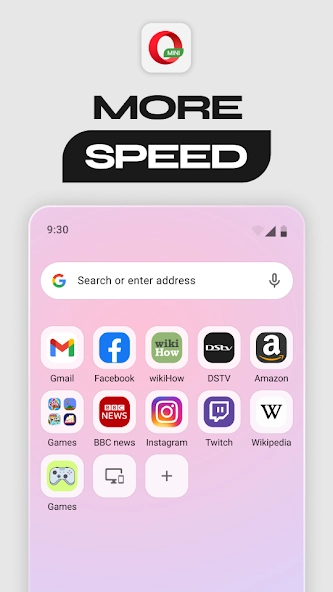
Opera Mini features a simple mobile-friendly interface that makes everyday browsing easier to manage. Its home screen provides quick access to Speed Dial shortcuts, frequently visited websites, and personalised news content. Users can open their favourite websites with a single tap instead of entering website addresses repeatedly. The layout also provides convenient access to the search bar, browsing tabs, downloads, and other commonly used tools. These elements help users find important browsing options without navigating through complicated menus.
The browser also includes several useful interface sections for managing everyday activities. Speed Dial displays shortcuts to selected websites, while Navigation and Tabs allow users to switch between different web pages. The Personalised News Feed provides access to articles from various topics, and Browser Settings lets users manage available options such as data savings, ad blocking, and appearance preferences. Together, these features make the Opera Mini interface straightforward for users who want quick access to their regular browsing activities.
Key Features of Opera Mini for Faster and Smarter Browsing
Data Savings and Page Compression
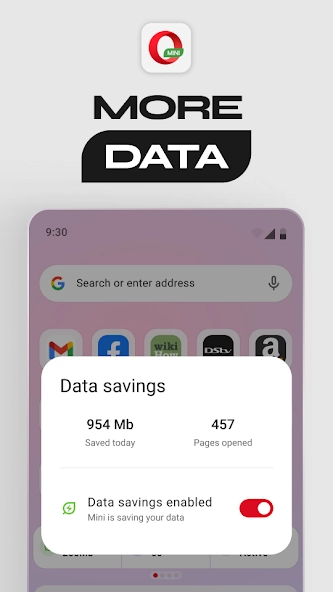
Opera Mini uses data compression technology to reduce the amount of data required to load supported websites. Its data-saving modes help users browse the internet while managing their mobile data consumption. Extreme mode applies stronger compression, which can be useful when using a limited internet package or a slow connection. However, some images and website elements may appear differently when compression is enabled.
Built-in Ad Blocker
Opera Mini includes a built-in ad blocker that helps reduce unwanted advertisements on supported websites. This feature can make web pages cleaner and improve the reading experience by limiting distracting promotional content. Users can enable ad blocking through the browser settings without installing a separate extension. However, some advertisements may still appear on certain websites.
Private Browsing and Incognito Mode
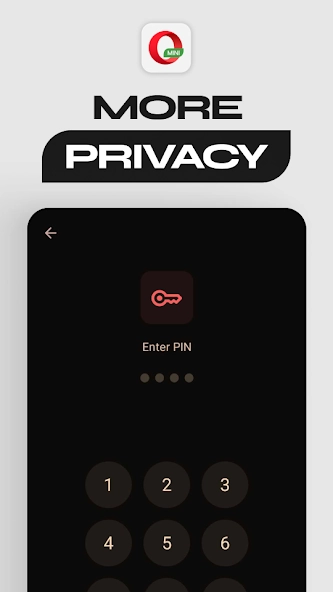
Private browsing allows users to open websites without adding their browsing history to the browser’s normal history records. It is useful when browsing on a shared device or keeping different browsing sessions separate. Users can open an incognito tab through the browser menu and close it when finished. However, private browsing does not hide all online activity from websites or internet service providers.
AI Chat Assistant
Opera Mini includes AI chat functionality that allows users to ask questions and explore information directly through the browser. It can help with everyday queries, learning topics, research ideas, and summarising information. This feature provides convenient access to AI assistance without constantly switching between applications. Users should still verify important information because AI-generated answers may sometimes contain mistakes.
Downloads and Offline Pages
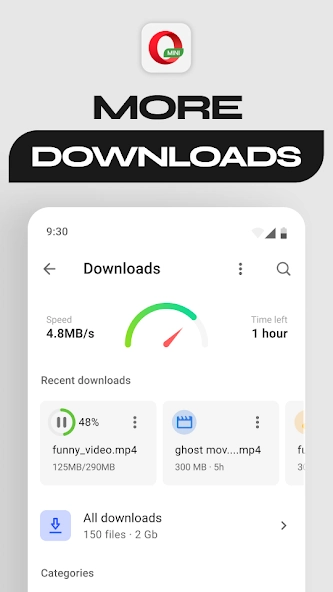
Opera Mini includes a download manager that helps users save supported files directly to their Android devices. It also allows users to save selected web pages for offline reading. This is particularly useful when someone wants to read an article later without using an internet connection. Downloaded files and saved pages can be accessed through the browser’s available download and saved-page sections.
Night Theme
The Night Theme gives Opera Mini a darker appearance for browsing in low-light environments. It can make the browser interface more comfortable for users who prefer darker colours when reading or browsing at night. Users can explore the available appearance options through the browser settings. The exact display options may vary depending on the installed version.
Personalised News and Football Updates
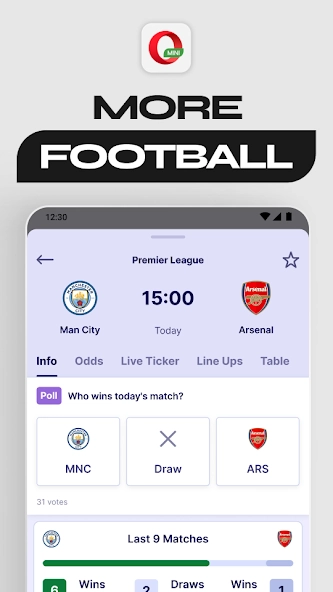
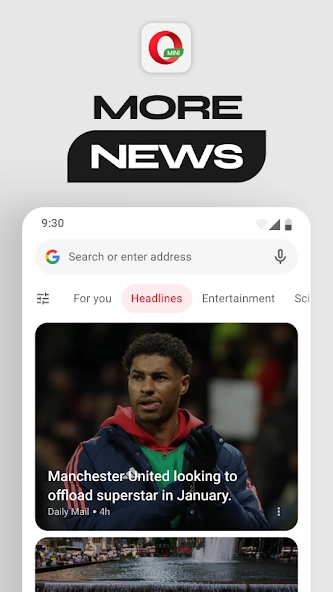
Opera Mini provides a personalised news feed where users can explore articles from different topics based on available content and preferences. Football fans can also access match scores, competition information, and other available updates through its sports-related content. These options make it easier to discover news and follow football information without manually visiting multiple websites.
How to Download, Install, and Set Up Opera Mini?
Installing Opera Mini on an Android smartphone is straightforward. The recommended approach is to download the application through its official Google Play Store listing.
Step 1: Open Google Play Store
Open Google Play Store on your Android smartphone and make sure you have an active internet connection.
Step 2: Search for Opera Mini
Enter Opera Mini: Fast Web Browser in the search bar. Check that the developer is listed as Opera before selecting the application.
Step 3: Download the Application
Open the official application page and tap the Install button. Wait for the download and installation process to finish.
Step 4: Open Opera Mini
Once installation is complete, tap Open to launch the browser. Follow any introductory instructions displayed on the screen.
Step 5: Configure Your Browser
Explore the settings and customise the available options according to your preferences. You can adjust data-saving settings, enable ad blocking, choose a suitable appearance, and manage browsing preferences.
Step 6: Start Browsing
Enter a website address or search for information using the address bar. You can also add frequently visited websites to Speed Dial for quicker access.
Tips and Tricks to Get the Best Browsing Experience with Opera Mini
Getting familiar with Opera Mini’s settings can help users make better use of its browsing tools. A few practical adjustments can improve convenience and reduce unnecessary data consumption.
Choose the Right Data-Saving Mode: If you have a limited mobile data package, explore the available compression settings. Extreme mode can reduce data usage considerably, although some websites may display differently.
Add Frequently Visited Websites to Speed Dial: Save your favourite websites to the home screen. This makes it easier to access important pages without repeatedly entering their addresses.
Enable Ad Blocking: Turn on the built-in ad blocker to reduce supported advertisements while browsing. This can make some web pages cleaner and easier to navigate.
Use Offline Pages: Save useful articles and web pages when you have an internet connection. You can read supported saved content later without reconnecting.
Explore Night Theme: If you frequently use your phone in darker environments, adjust the night display settings to find a comfortable reading appearance.
Manage Your Downloads: Check your downloaded files regularly and choose an appropriate storage location when saving content. This makes files easier to find later.
Use Private Browsing When Appropriate: Open an incognito tab when you do not want a browsing session added to your normal browser history. Remember that this does not make you completely anonymous online.
Review Privacy Permissions: Check the permissions requested by Opera Mini and allow only those that are necessary for the functions you want to use. You can review app permissions through Android settings.
FAQs
Is Opera Mini free to use?
Yes, Opera Mini is free to download and use. However, mobile data charges may apply when browsing the internet.
Does Opera Mini reduce internet data usage?
Yes, Opera Mini uses data compression technology to reduce the amount of data needed to load supported web pages.
Can I browse websites offline with Opera Mini?
You need an internet connection for normal browsing, but you can save supported web pages and read them later without internet access.
Does Opera Mini have a built-in ad blocker?
Yes, Opera Mini includes an ad blocker that helps reduce advertisements on supported websites. You can enable it through the browser settings.
Can I use Opera Mini on an Android phone?
Yes, Opera Mini is available for Android smartphones. You can download it from Google Play Store and install it on a compatible device.
Conclusion
Opera Mini is a practical mobile browser for people who want to access websites while keeping mobile data consumption under control. Its compression technology, ad blocker, Speed Dial shortcuts, offline page saving, and night theme provide useful tools for everyday browsing. Additional options, including AI chat, news content, and football updates, give users more ways to access information within the application.
However, its compression technology may affect how certain websites display, and some features depend on regional availability or the installed version. Users should also understand that private browsing does not guarantee complete online anonymity. For people who value data efficiency and straightforward mobile browsing, Opera Mini is worth considering. The best choice ultimately depends on individual browsing habits, privacy expectations, and the features required. The best choice ultimately depends on individual browsing habits, privacy expectations, and the features required. At APKsbrain, we always advise users to download official browsers directly from the Google Play Store and review app permissions and privacy settings before browsing.
Mod features
Extras included in this package.
- Data Compression
- Built-in Ad Blocker
- Private Browsing Mode
- AI Chat Assistant
- Offline Page Saving
- Fast Download Manager
- Speed Dial Shortcuts
- Night Theme
- Personalised News Feed
- Football Updates

