

InVideo AI
invideo INC Verified
Specifications
Table of contents
About this app
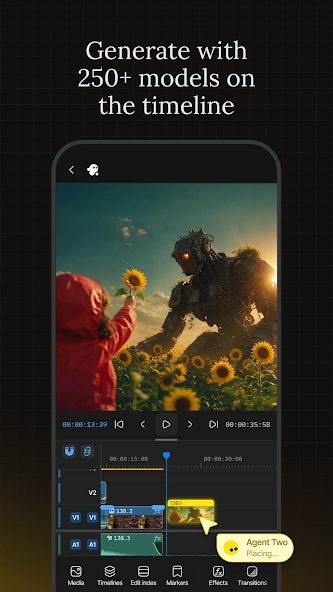
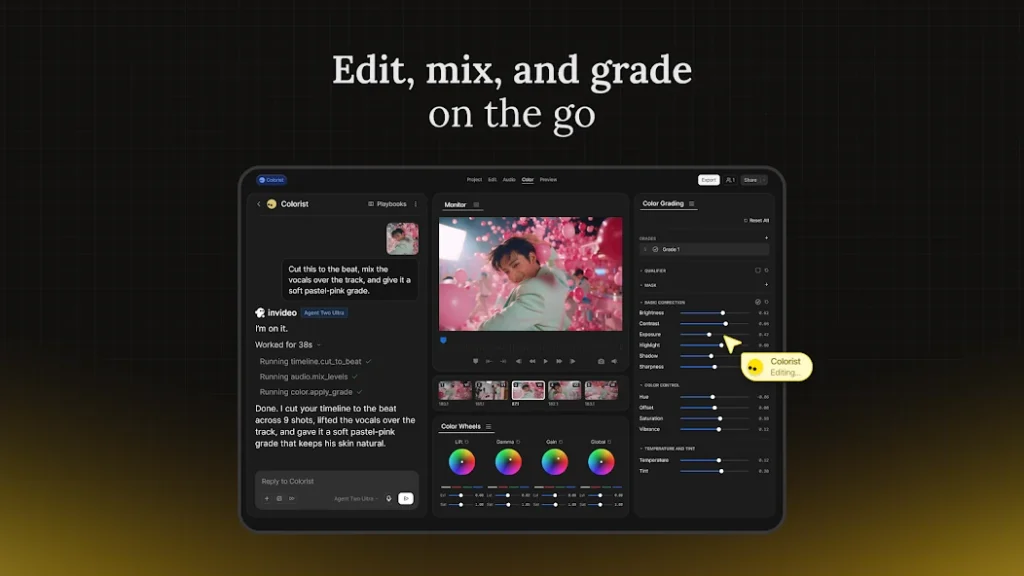
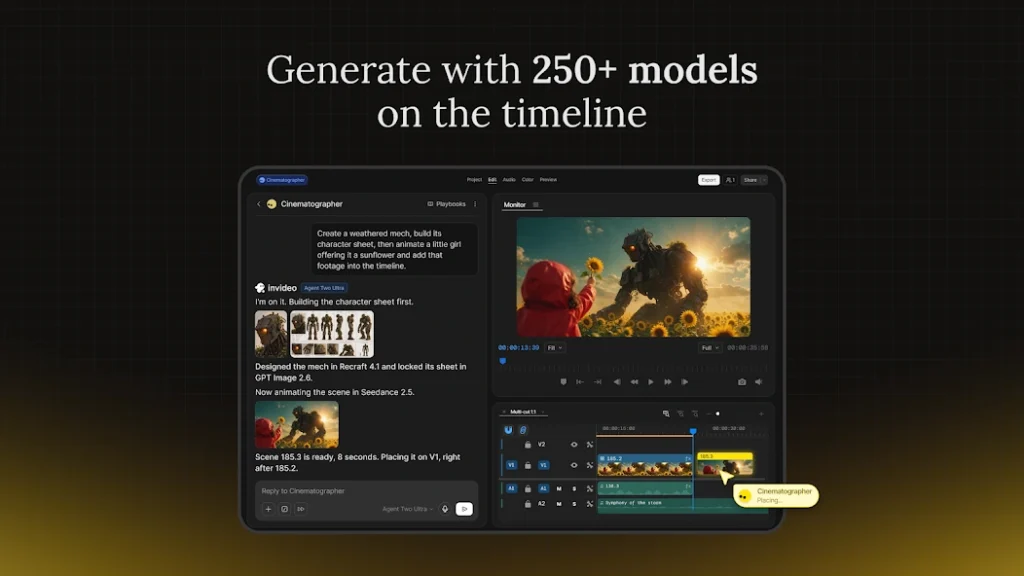
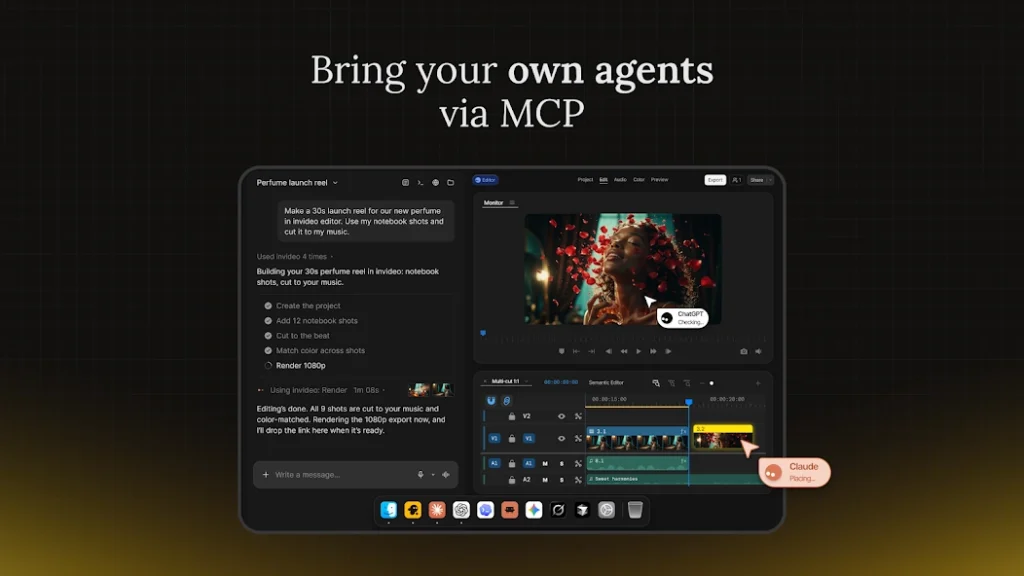
Creating a video usually involves several separate tasks: preparing a script, finding suitable footage, recording narration, arranging scenes, adding background music and checking the final edit. InVideo AI brings many of these activities into an AI-assisted workflow. Users can describe a video idea in a written prompt, provide their own script or use supported content links, and let the platform assemble an initial video. Its generation process can include AI-written narration, stock footage, AI-generated visuals, voiceovers, subtitles, music and transitions.
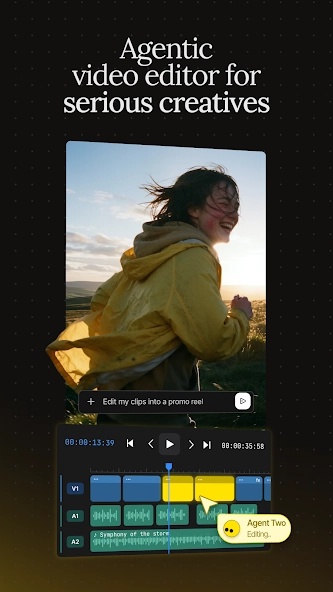
InVideo AI is particularly relevant to people who produce educational videos, product explainers, promotional material and social media content. Its main difference from a conventional timeline editor is the way users give instructions: instead of arranging every scene manually, they can describe the result they want and allow the AI to handle much of the initial production. The platform also includes Magic Box, which accepts written editing commands for supported changes. InVideo AI is a browser-based service, although the company also offers other products and mobile applications. It should not be confused with an Android APK: an Android version should only be recommended when an official Android listing is verified.
How to Make a Video from a Simple Idea Using InVideo AI?
Creating a video with InVideo AI begins by describing your idea in a clear written prompt. You can explain the topic, intended audience, purpose and preferred video style. For example, if you want to create an educational video about cloud storage, your prompt can ask for a simple explanation of how online storage works, how files are uploaded and synchronised, and why it is useful. You can also include details such as the approximate video length, publishing platform and preferred voiceover accent. Providing these instructions helps the AI understand the type of video you want to create.
After submitting your prompt, InVideo AI uses it to prepare a script and generate an initial video with suitable visuals, narration, background music and other elements. You can review the generated scenes and check whether they communicate your idea correctly. For instance, a video explaining cloud storage should include visuals related to uploading files, accessing documents and synchronising information across devices. If the generated content does not match your expectations, you can provide additional instructions and use the available editing features to improve the result.
Before downloading or publishing the video, review the complete presentation carefully. Check that the narration matches the visuals, the text is readable and the information follows a logical order. Pay particular attention to technical explanations because AI-selected footage may look relevant without accurately illustrating the subject. You should also check the pronunciation of important terms and remove any unnecessary scenes. This final review helps ensure that your video communicates the original idea clearly and provides useful information to its intended audience.
Creating Videos by Writing Your Own Script
A creator does not always need AI to write the entire narration. InVideo AI supports the use of an existing script, giving users greater control over the information, wording and order of presentation. According to the official Help Center, the platform can also accept supported blog links and YouTube links, alongside detailed prompts and scripts. This makes it useful for creators who already have written material and want to adapt it into video content.
A well-prepared script should contain a clear introduction, a logical explanation and a suitable ending. Each section should communicate a specific point. Consider a software tutorial: the script might first explain the purpose of the software, then describe its main functions and finally show how a user can complete a particular task. This structure gives the video a clear direction and makes it easier to review whether the selected visuals match the spoken information.
There is an important difference between supplying a script and asking AI to research a subject independently. A script provides the information that should guide the video, but it does not automatically guarantee that every visual, technical term or generated statement will be correct. Check names, product specifications, figures, dates and instructions against reliable sources. If the original script contains an error, the generated video may reproduce it. For professional or educational publishing, the approved script should remain the reference point during final editing.
Adding Voiceovers and Music to Make Videos More Engaging
Narration is an important part of an explainer or tutorial because it connects the visual scenes and communicates information that images alone cannot provide. InVideo AI offers AI-generated voiceovers and allows users to select available voice characteristics, including male or female voices, languages and accents. Its official product page advertises voiceovers in more than 50 languages, making multilingual video production one of its intended uses.
Language and accent choices should reflect the intended viewers. A video in English for a British audience may require a different pronunciation style from one intended for American viewers. Similarly, a tutorial for an international audience may benefit from clear, straightforward narration rather than a highly regional speaking style. Listen to the generated voiceover and check the pronunciation of names, technical terms and abbreviations. A voice that sounds natural in one sentence may still pronounce a specialist term incorrectly.
Background music has a supporting role. It can establish a mood, maintain continuity between scenes and make a promotional video more lively. However, music should not compete with spoken explanations. A quiet instrumental track is generally more appropriate for a detailed tutorial than a loud soundtrack. Review the final audio mix and check the usage permissions for the selected music before publishing. The availability of particular voices, languages and audio-generation options may depend on the current product workflow and subscription.
How to Change Scenes, Text and Images in Your Video?
An AI-generated video is not necessarily the final version. A selected scene may not match the narration, a title may contain too many words or an image may show something different from what the script describes. InVideo AI provides a text-based editing feature called Magic Box, which allows users to request supported changes through written instructions.
For example, the official website demonstrates commands such as deleting a scene, changing a voiceover accent and adding an introduction. These commands let users describe an adjustment without having to rebuild the complete video manually. A more precise instruction usually gives the system a clearer target. Instead of writing “improve this video”, a creator could request: “Remove the opening scene and replace it with a visual introduction to online education.” The result should then be reviewed to confirm that the change has been applied correctly.
Scene selection deserves particular attention. Stock footage can communicate a general atmosphere, but it may not represent a specific product, location or process. A video explaining a software dashboard should not show an unrelated interface simply because it looks similar. Text should also be checked for spelling, readability and placement. If a scene contains important factual information, compare it with the narration and the original source material.
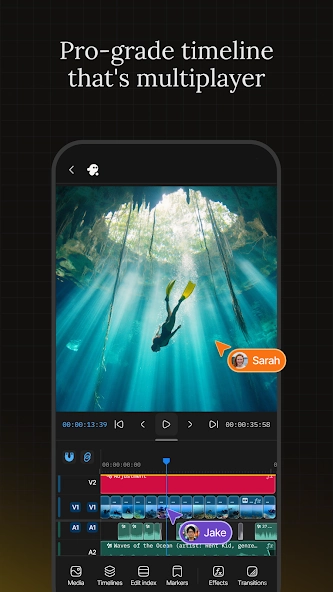
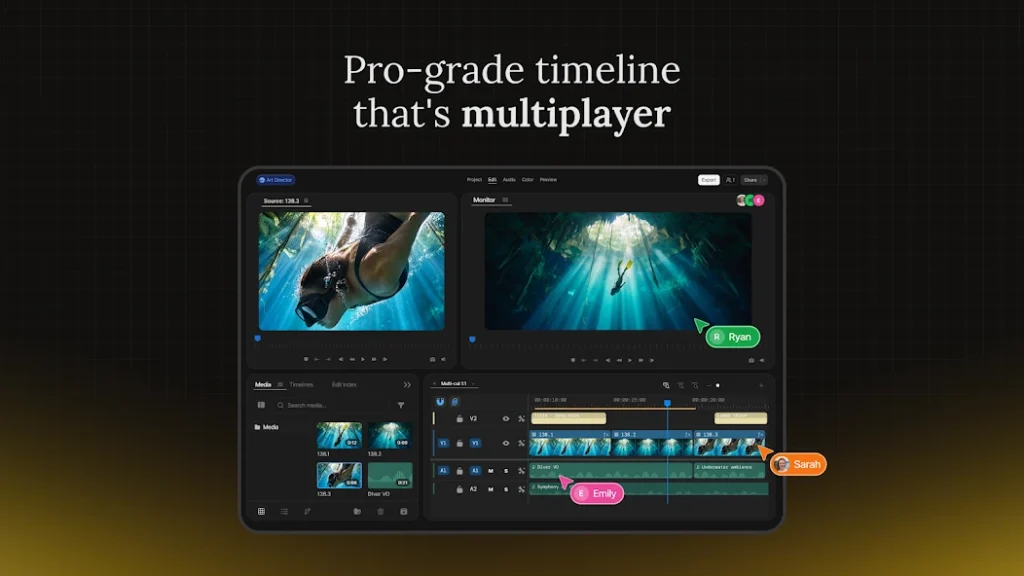
InVideo AI should also be distinguished from InVideo Studio. The company’s Help Center describes InVideo AI as an AI-powered generation product, while InVideo Studio provides a more traditional editing environment with a timeline and manual controls. The two products have separate subscriptions, so access to one should not be assumed to include the other.
Making Videos for YouTube and Social Media
The intended publishing platform affects how a video should be planned. A detailed YouTube tutorial can use a longer explanation and several supporting scenes, whereas a short social media video needs to communicate its main point quickly. InVideo AI allows users to specify a target platform as part of the video instructions, helping guide the generation process towards the intended format and audience.
For a YouTube educational video, the opening should establish the subject and explain what viewers will learn. The main sections should follow a sensible order, with each scene supporting the narration. Product demonstrations should show the correct product or interface, and the title should accurately describe the content. For shorter social media videos, the central message should appear early. On-screen text should be brief enough to read on a mobile display, and subtitles can help viewers follow the narration when sound is unavailable.
Different platforms and placements can require different aspect ratios, resolutions and duration limits. These details should be checked before export rather than assuming that one video format will suit every destination. Creators should also consider copyright rules, music permissions, advertising requirements and any platform-specific disclosure rules for AI-generated content. InVideo AI can assist with production, but it cannot guarantee that a video meets every platform’s publishing policies.
Saving and Downloading Your Completed Video
The final stage is to review and export the completed video. Before downloading, watch the entire project from beginning to end. Check the opening, scene order, narration, subtitles, music and closing section. Pay attention to small errors such as incorrect names, unfinished text, mismatched visuals and sudden changes in audio volume. These issues can affect the credibility of an otherwise well-produced video.
InVideo’s current credit documentation explains that AI operations, including generating images, video, voice and music, use credits. The amount depends on the models and operations selected. The same documentation states that exporting or downloading a completed video does not consume credits. Free and paid subscriptions have different allowances, and unused monthly plan credits do not roll over into the following month. Because plans and credit costs can change, check the current pricing page and the credit balance shown in your account before starting a large project.
Once the export is complete, save the file with a descriptive name that identifies its subject and version. Keep the final version separate from earlier drafts so that it is easier to find the correct file when publishing. If the video contains business information, customer material or confidential recordings, review the platform’s privacy terms before uploading that material. A downloaded video is ready for further use, but its suitability for a particular platform still depends on that platform’s technical and content requirements.
FAQs
Can beginners create videos with InVideo AI?
Yes, beginners can use text prompts and ready-made templates to start creating videos. The platform provides editing tools that help users arrange scenes, adjust text and customise their projects.
Does InVideo AI support text-to-video generation?
Yes, InVideo AI can turn written prompts into video drafts. Users can describe their ideas, select suitable settings and review the generated scenes before making further edits.
Can I edit an AI-generated video in InVideo AI?
Yes, users can refine generated videos by changing scenes, adjusting scripts, modifying visuals and editing other available elements. This makes it easier to bring the final video closer to the original idea.
Does InVideo AI offer voiceovers for videos?
InVideo AI includes AI voiceover options that can add narration to supported video projects. Users can review the available voices and choose an option that suits their content.
Is InVideo AI suitable for creating social media videos?
Yes, creators can use InVideo AI to prepare videos for social media content. They can customise the visuals, narration and format to match the requirements of their intended platform.
Conclusion
InVideo AI brings prompt-based video generation and editing tools into a single online workflow. Its ability to work with written prompts, existing scripts and supported links gives creators different ways to develop video content. Features such as AI-generated visuals, voiceovers and Magic Box editing can reduce the amount of manual work involved in preparing an initial video. However, the usefulness of these tools depends on the quality of the instructions and how closely the generated content matches the intended subject.
The platform also has limitations that creators should consider before using it for regular production. AI-generated scripts and visuals require editorial checks, while subscription credits can affect how frequently users access generation features. Copyright permissions and privacy terms deserve attention, particularly when uploading original or confidential material. InVideo AI is therefore best suited to creators who want assistance with video production while retaining control over research, editing and final content quality. At APKsbrain, we always advise creators to verify official platform listings, credit terms, and privacy policies before uploading sensitive content to any AI tool.
Mod features
Extras included in this package.
- AI-powered video creation
- Text-to-video generation
- AI script generation
- AI voiceovers
- Multiple voice options
- AI-generated visuals
- Automated scene selection
- Smart video editing
- Magic Box editing
- Prompt-based editing
- Video templates
- Customisable templates
- Stock media library
- AI image generation
- Text-to-speech conversion
- Automatic subtitles
- Subtitle customisation
- Background music
- Music library
- Voice narration
- Scene transitions
- Video effects
- Text overlays
- Animated text
- Custom fonts
- Brand colours
- Logo integration
- Intro creation
- Outro creation
- Video trimming